 Have you wanted to make your forms look nicer by adding icons in the input boxes? Here’s how to do it with Gravity Forms:
1) Upload your icons to the site. I prefer to use ftp and upload the icons to the image folder of my theme so clients won’t delete them by mistake, but you can also upload them directly to your Media Library. Where ever you put them, be sure you know their link URL.
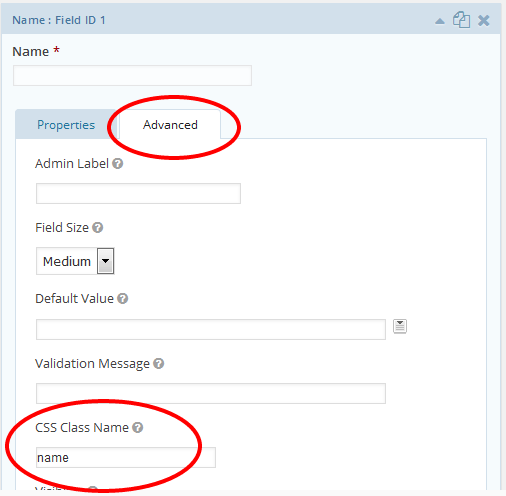
2) Create your form in Gravity Forms. If you already have the form set up, even better! Then, for each field, choose the Advanced tab and near the bottom, create your CSS Class Name. In this example, I have called it “name” because that is what I’m trying to collect in this field. For the next ones I have used “phone” and “email”.
3) Next, go to the front end of your site where the form is displayed and use Firebug or Inspect Element to find out the field id, as I have done here. (Click on the image below to get a better look.) If you don’t know how to use Firebug, please see my presentation here: Using Firebug. You’ll see that for my first field, the Name field, Gravity Forms has automatically given the li(list item) an id of #field_2_1. Next I have added my CSS Class Name that I added in the Gravity Form. I know what to look for since I added this myself, but you can also see it in Firebug right after the li id.

4) Now, in your style.css file (found under Appearance > Editor), you want to add the part that you see in the right hand side of my Firebug window. (You won’t see this in your window because you have not added it yet.) So you will be adding this code (note- you need to make it match the id and CSS class of YOUR form):
li#field_2_1.name input {

      background: url("/wp-content/themes/minimum-pro/images/icons/name.png") no-repeat scroll 0 1px transparent;

      display: block;

      padding-left: 70px;

      }
So, the first part li#field_2_1 -that I got from Firebug. Gravity Forms automatically names each field. Your field may be named differently.
The .name part – that is CSS Name I added in Gravity Forms.
Finally, the input part – that you can see in Firebug. That will always be the same because that is the part of the form where we want the icon to go.
You will see that I have made the icon a background image. (That’s where you use the link to your image we talked about before.)
You want to make sure you add the display:block.
And then finally, I added the padding-left so that the words would be moved over enough to allow room for the image to show.
So, you will have to create a separate one of these for each icon you plan to use. In this case, I created three of them. Here is what my style.css file looks like:

If I didn’t answer all your questions, please let me know in the comments below and I’ll try to update my instructions. Happy coding!